1
Tap once
The patient taps one large button to call the caregiver they need.

A simple, reassuring way to call for help at home.
Comere! keeps the caregiver call flow simple for the patient and clear for the family.
The patient taps one large button to call the caregiver they need.
The selected caregiver gets a clear alert on their phone, even when the app is not open.
The patient sees when the caregiver got the message and is on the way.
Comere! works with a small household, not a single phone by itself. Start with the Patient device, then join each Caregiver phone.
You need at least 2 devices: 1 Patient device and 1 Caregiver phone. You can add more caregiver phones after the first one is working.
An iPhone or iPad that stays with the person who may need help. This device creates the household and gives you the 6-digit pairing code.
One or more iPhones for the people who will receive alerts. Each caregiver phone joins the household with the same 6-digit code.
On the patient’s iPhone or iPad, tap Setup, open Patient Setup, enter a household name, and tap Create Household. Write down the 6-digit pairing code.
On the caregiver iPhone, tap Setup, open Join As Caregiver, enter the 6-digit pairing code, add the caregiver’s name, choose the role, and tap Join Household.
When the caregiver phone asks for notification permission, tap Allow. If the phone already shows notifications as denied, open Settings → Apps → Comere! → Notifications and turn on Allow Notifications.
If newly joined caregivers do not appear on the Patient device yet, open Setup, open Patient Setup, enter the existing pairing code, and tap Set Up This Device again.
Good first test: after the first caregiver phone joins, go back to the Patient device and make sure that caregiver appears before relying on the household.
These are live screens from the app, showing the patient side, the caregiver side, and the reassurance the patient receives after acknowledgment.
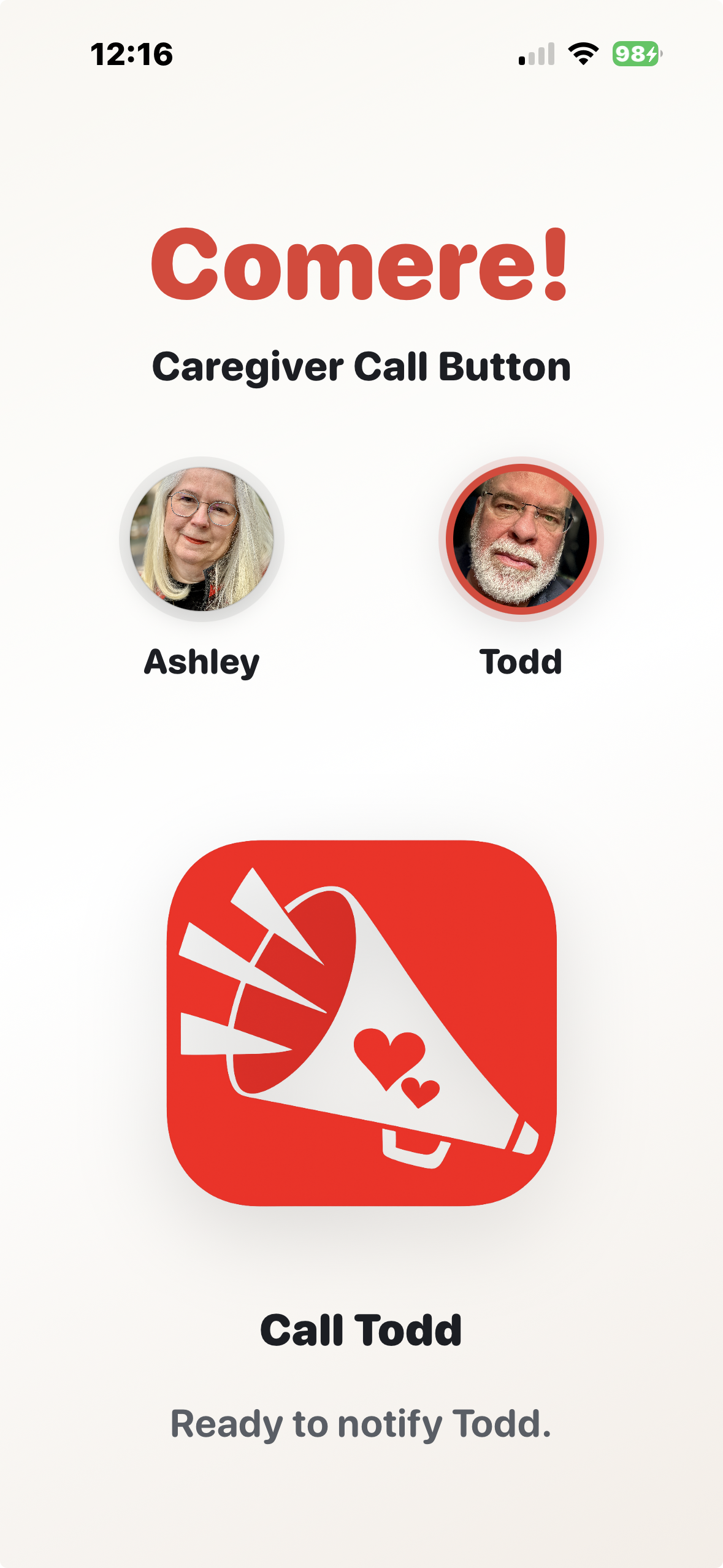
Large, direct, and easy to understand when help is needed quickly.
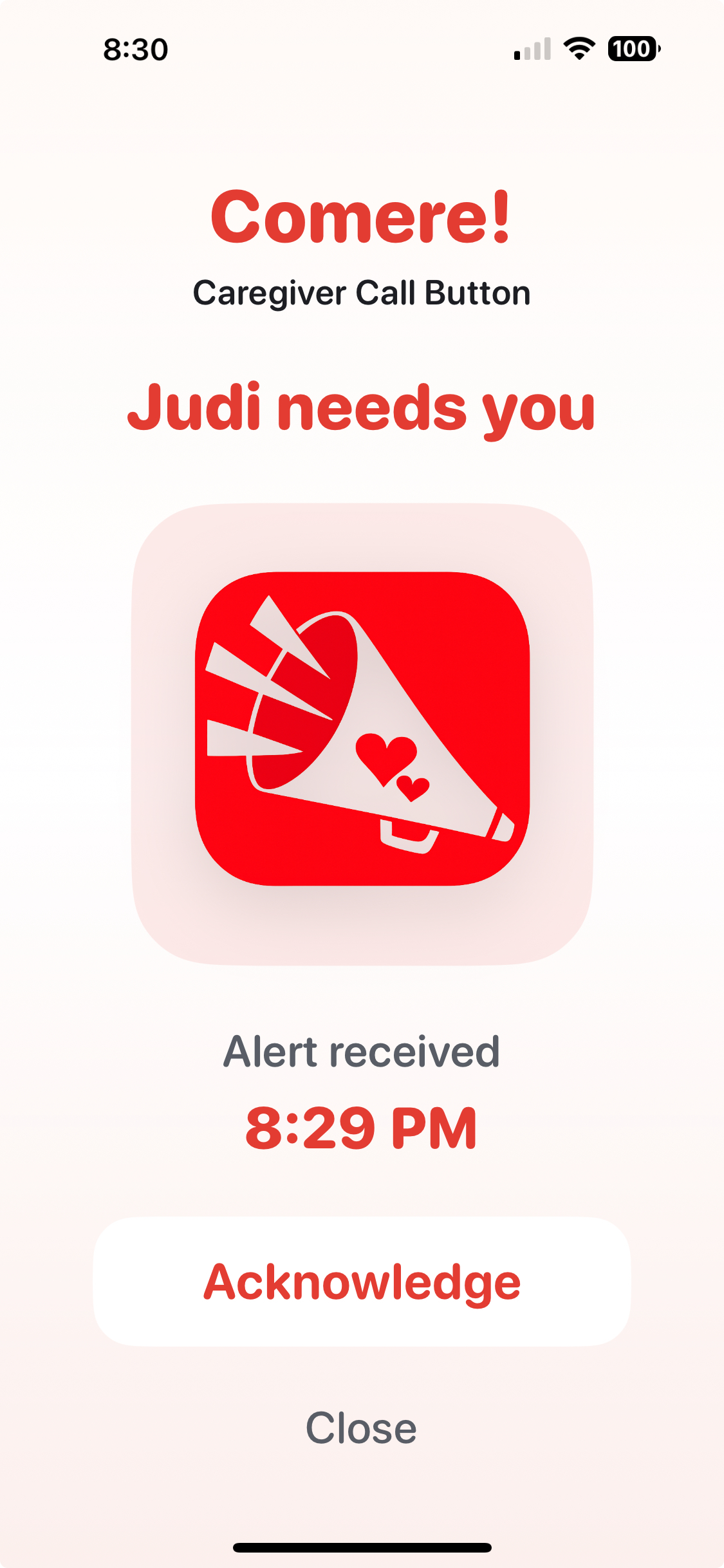
The caregiver sees who needs help immediately and can acknowledge with one tap.
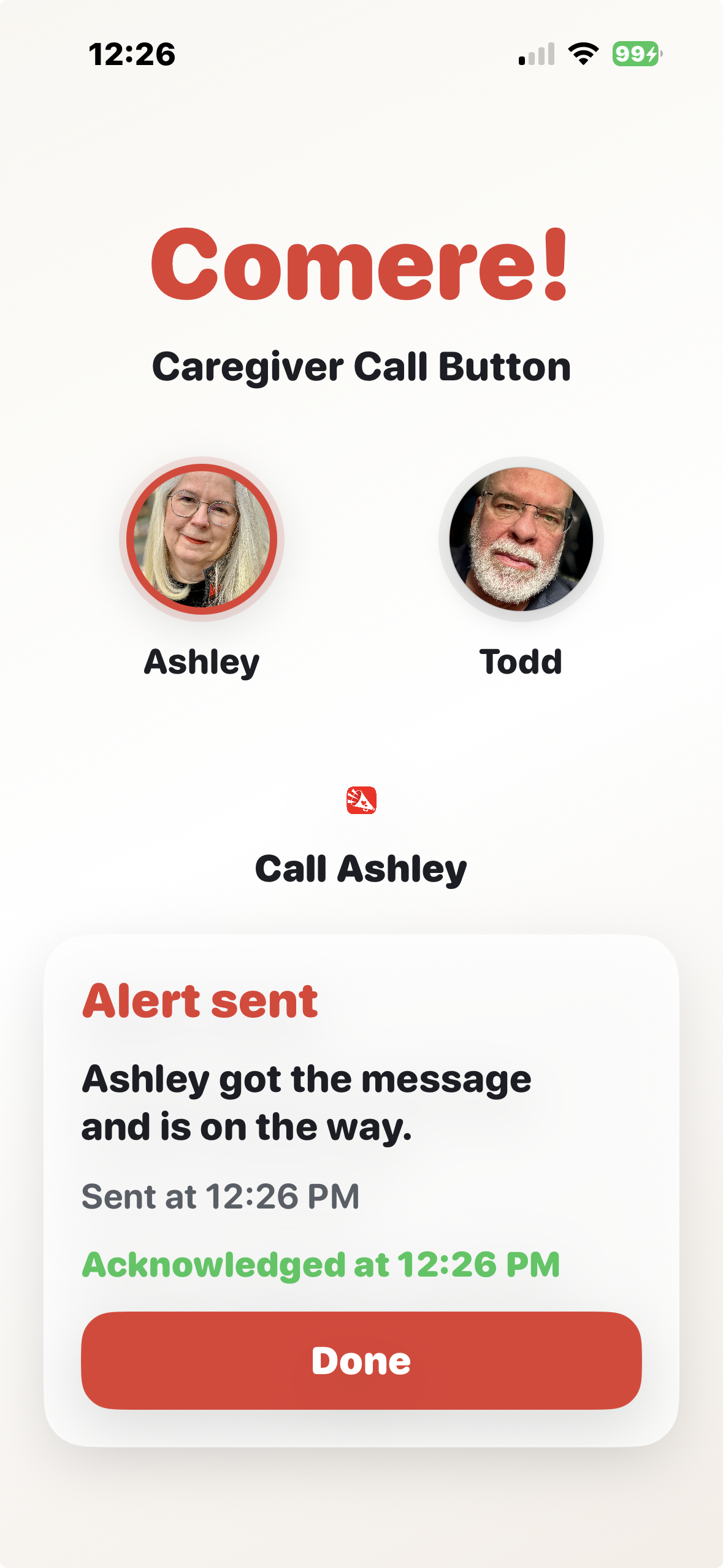
The patient gets visible confirmation when the caregiver has responded.
Available now on the App Store. Comere! is built to stay simple, calm, and dependable for real home caregiver use.